Stop WordPress Comment Spam
Use this page when a WordPress site is receiving comment spam or no longer needs public comments. Start with discussion settings, then add anti-spam filtering if comments should remain enabled.
Decide Whether Comments Are Needed
If the site does not use comments, turn them off:
- Sign in to WordPress admin.
- Open
Settings>Discussion. - Uncheck
Allow people to submit comments on new posts. - Save the change.
This affects new posts. Existing posts may still allow comments until their discussion settings are changed.
Tighten Discussion Settings
For sites that keep comments enabled:
- Open
Settings>Discussion. - Enable
Comment author must fill out name and email. - Enable
Comment must be manually approved, or at least require approval for first-time commenters. - Hold comments with multiple links for moderation.
- Save the changes.
Use An Anti-Spam Plugin
Akismet is included with many WordPress installations and is one common option. Other reputable anti-spam plugins can work too.
Activate Akismet
- Log in to your WordPress dashboard.
- Open
Plugins. - Find
Akismet Anti-spam. - Click
Activate.

Connect Akismet
After the plugin is active, WordPress prompts you to connect Akismet to an account.
- Click
Activate your Akismet account.
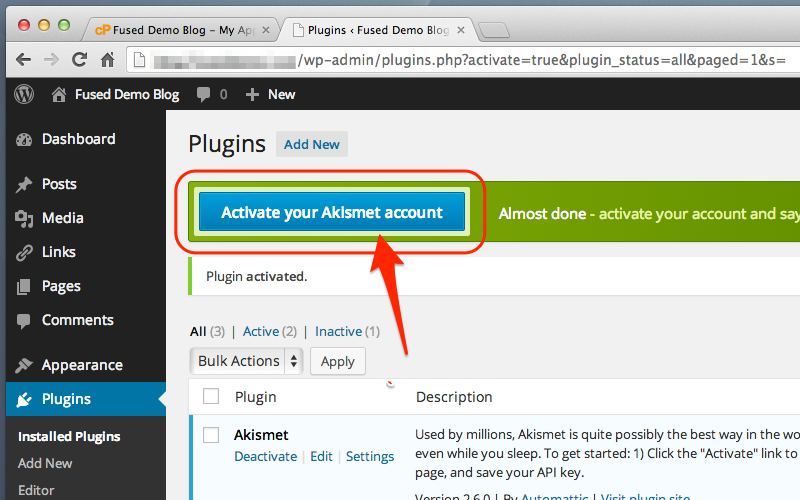
- Follow Akismet's account setup flow, or choose the existing-key option if you already have an Akismet key.

- Enter the API key in the
Akismet API Keyfield. - Click
Save Changes.
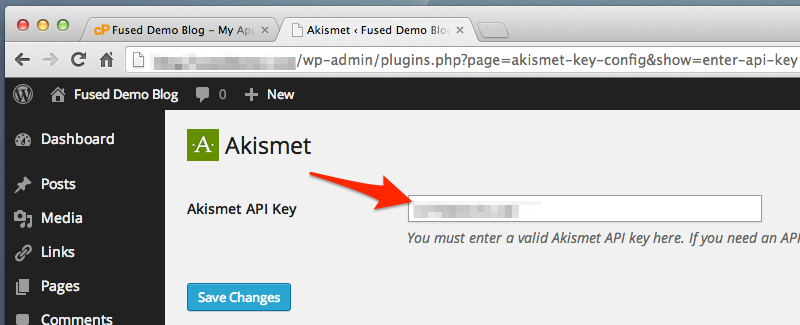
Confirm Protection Is Active
After the key is saved, Akismet starts filtering comment spam. WordPress also adds an Akismet stats page where you can review what has been blocked.
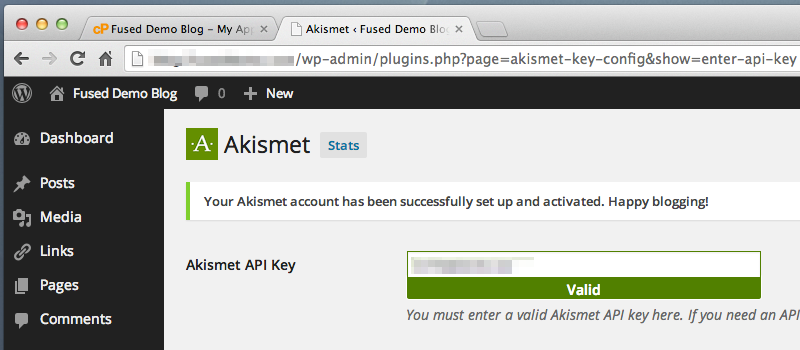
If Spam Continues
- Disable comments entirely if they are not useful.
- Add moderation rules for common spam phrases.
- Review whether public user registration is enabled.
- Contact Fused if the site is also creating spam users or sending suspicious email.